
Fixing Bottom Navigation Overlap in Android (Gesture Navigation + Edge-to-Edge)
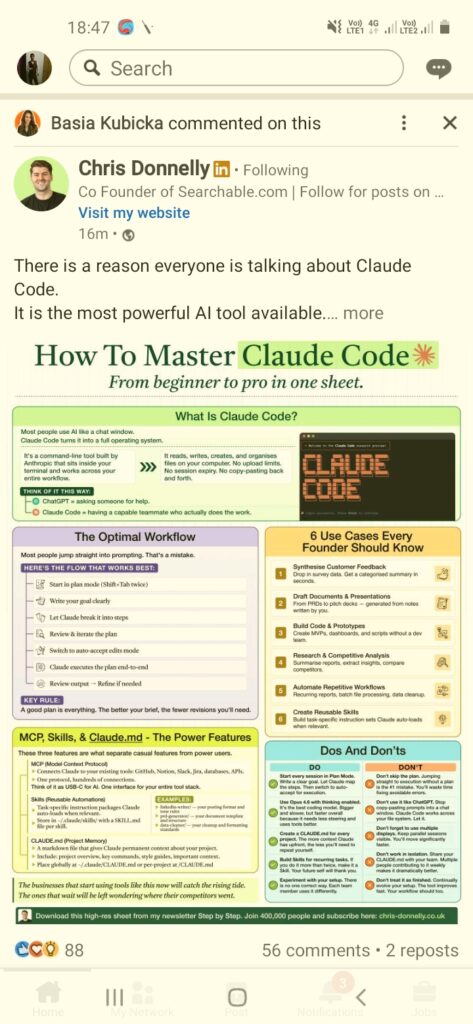
While using the LinkedIn Android app recently, I noticed a subtle but important UI issue:
The bottom navigation bar was visually overlapping the system back gesture area when gesture navigation was enabled.
It wasn’t a crash.
It wasn’t a rendering glitch.
It was a WindowInsets handling problem — the kind that easily slips into production in large-scale apps.
This article explains:
- Why it happens
- How to correctly handle it
- Production-grade solutions in XML (View system) and Jetpack Compose
1️⃣ Understanding the Root Cause
Since Android 10 (API 29), gesture navigation replaced the traditional 3-button navigation.
When you enable edge-to-edge rendering using:
WindowCompat.setDecorFitsSystemWindows(window, false)
You’re effectively telling the system:
“I will handle all system bar spacing manually.”
If you don’t apply bottom insets correctly, your BottomNavigationView (or Compose NavigationBar) will render into the gesture zone.
This results in:
- Visual overlap
- Gesture conflict
- Reduced usability
- Poor UX perception
2️⃣ Production-Grade XML (View System) Solution
Step 1 — Enable Edge-to-Edge Correctly
In your Activity:
WindowCompat.setDecorFitsSystemWindows(window, false)
Avoid mixing this with random fitsSystemWindows flags across multiple views.
Step 2 — Apply Navigation Insets Properly
ViewCompat.setOnApplyWindowInsetsListener(bottomNavigationView) { view, insets ->
    val navigationInsets = insets.getInsets(WindowInsetsCompat.Type.navigationBars())
    view.updatePadding(bottom = navigationInsets.bottom)
    insets
}
Why this works:
- Dynamically reads actual system navigation height
- Works for gesture & 3-button modes
- Supports API 21+ via
WindowInsetsCompat - Handles OEM variations
Step 3 — Handle Keyboard Insets Separately
For input screens:
ViewCompat.setOnApplyWindowInsetsListener(rootView) { view, insets ->
    val imeInsets = insets.getInsets(WindowInsetsCompat.Type.ime())
    view.updatePadding(bottom = imeInsets.bottom)
    insets
}
Never blindly combine IME and navigation insets unless you explicitly intend to.
3️⃣ Production-Grade Jetpack Compose Solution
Compose provides more structured inset handling — but only if used correctly.
Activity Setup
WindowCompat.setDecorFitsSystemWindows(window, false)
Recommended: Scaffold-Based Pattern
Scaffold(
    bottomBar = {
        NavigationBar(
            modifier = Modifier.navigationBarsPadding()
        ) {
            // Navigation items
        }
    }
) { innerPadding ->

    Box(
        modifier = Modifier
            .fillMaxSize()
            .padding(innerPadding)
    ) {
        // Screen content
    }
}
Why this is production-safe:
navigationBarsPadding()adapts automaticallyinnerPaddingprevents double layout conflicts- Works cleanly across API levels
Advanced Fine-Grained Control
Modifier.windowInsetsPadding(
    WindowInsets.navigationBars
)
Or merge navigation + keyboard:
Modifier.windowInsetsPadding(
    WindowInsets.navigationBars.union(WindowInsets.ime)
)
4️⃣ Centralized Handling for Scalable Apps
In large apps (multi-module, multi-fragment, hybrid Compose + View):
Best practice is to centralize inset configuration.
Example:
abstract class BaseActivity : AppCompatActivity() {
    override fun onCreate(savedInstanceState: Bundle?) {
        super.onCreate(savedInstanceState)
        WindowCompat.setDecorFitsSystemWindows(window, false)
    }
}
Then apply insets only at:
- Root container
- Bottom navigation
- IME host
Avoid per-fragment duplicate inset logic.
5️⃣ Production Testing Matrix
Always validate:
Navigation Modes
- Gesture navigation
- 3-button navigation
Device States
- Keyboard open
- Split-screen
- Landscape mode
- Transient system bars
OEM Variations
- Pixel (AOSP baseline)
- Samsung (One UI modifies gesture height)
- Xiaomi / Oppo custom ROMs
Never assume fixed inset sizes.
6️⃣ Common Mistakes in Real Projects
❌ Hardcoding bottom padding (e.g., 16dp)
❌ Mixing fitsSystemWindows and manual insets
❌ Applying padding to RecyclerView instead of parent container
❌ Ignoring landscape behavior
❌ Forgetting transient system bar changes
Final Takeaway
While using the LinkedIn app, the overlap issue was minor — but technically significant.
Inset handling is no longer optional in modern Android engineering.
If you enable:
WindowCompat.setDecorFitsSystemWindows(window, false)
You are responsible for correctly managing:
- Navigation bar insets
- Gesture areas
- IME insets
- System UI changes
Proper WindowInsets handling directly impacts:
- Gesture reliability
- Accessibility
- UX quality
- Play Store ratings
Edge-to-edge design is powerful — but only when engineered correctly.